
May 21, 2026
Zider Product Detail Enhancer: Multilingual Usage Guide
This guide explains how to enable multilingual product detail content with Zider Product Detail Enhancer. After setup, you can create separate product detail content for each supported site language and display the corre
This guide explains how to enable multilingual product detail content with Zider Product Detail Enhancer.
After setup, you can create separate product detail content for each supported site language and display the correct content on your product detail page.
1. Open the Dashboard
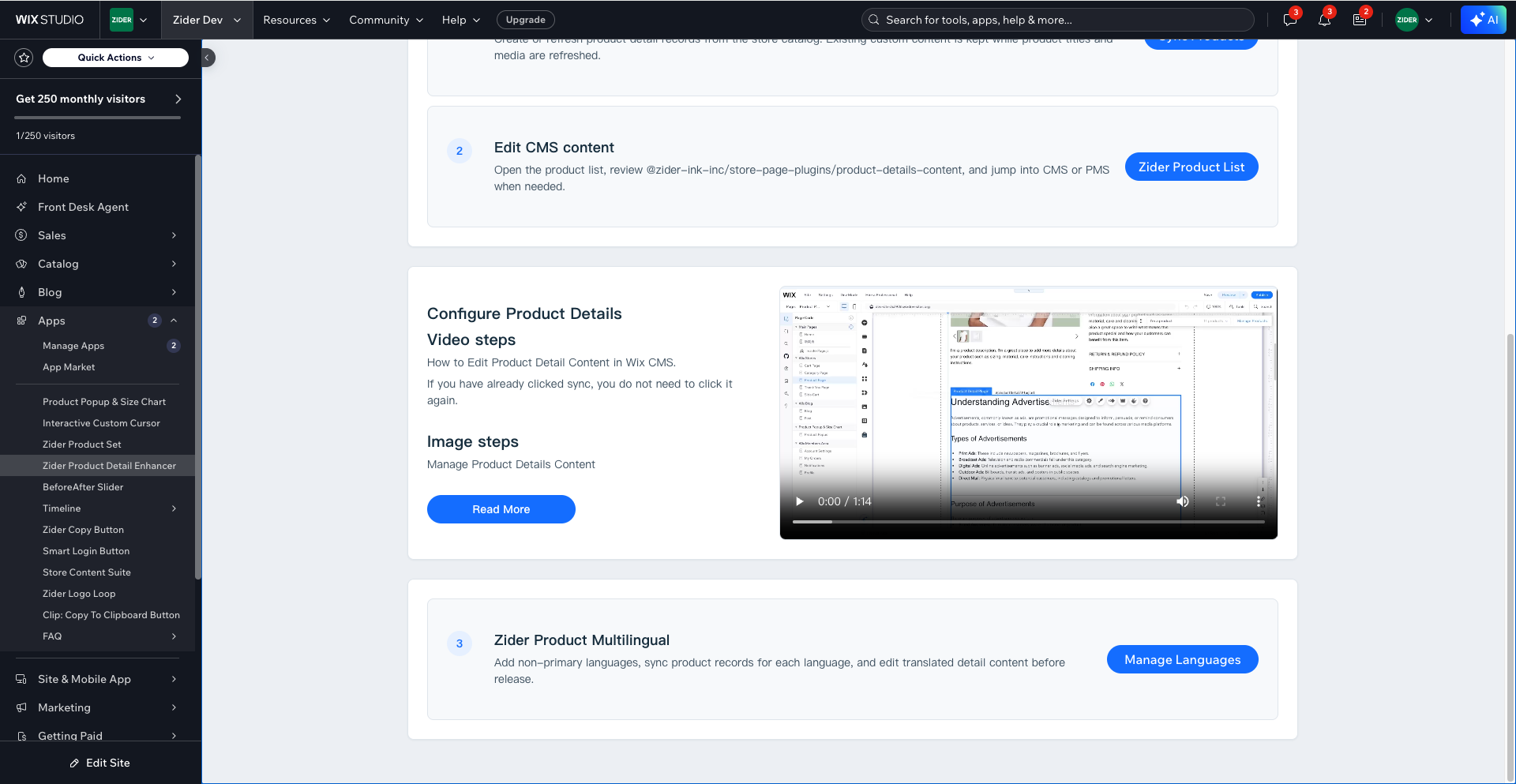
Go to your Wix Dashboard and open Zider Product Detail Enhancer from the Apps menu.
On the main dashboard, find the Zider Product Multilingual section and click Manage Languages.
2. Add a Language
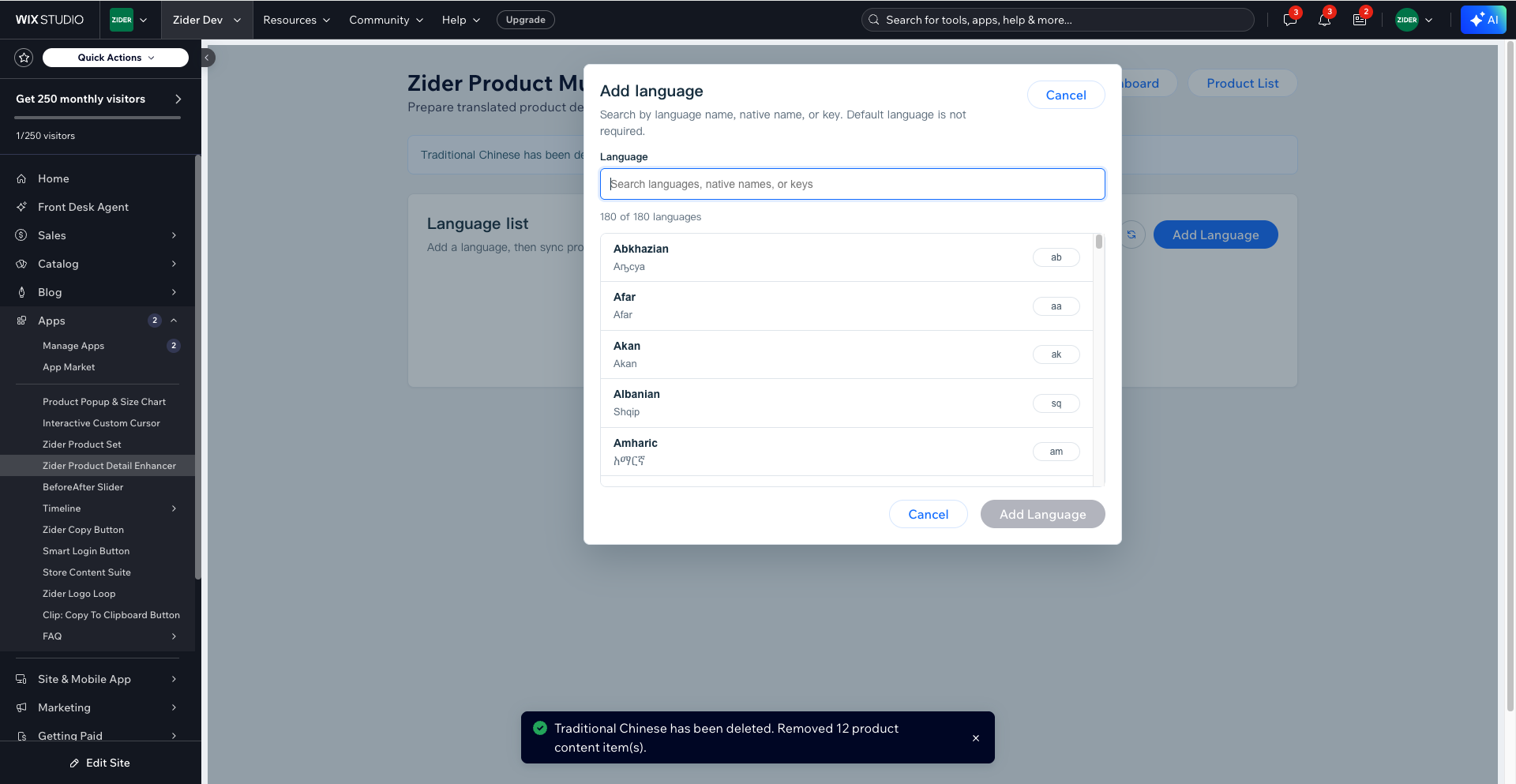
On the Zider Product Multilingual page, click Add Language.
In the dialog, search for the language you want to support, such as Traditional Chinese, Chinese, or Japanese. Select the language, then click Add Language.
The main language does not need to be added. Only add non-primary languages that you want to translate.
3. Sync Products
After adding a language, find it in the language list and click Sync Products.
The app will create product detail content records for that language. When the sync is complete, you will see a success message with the number of inserted and updated records.
Example:
Traditional Chinese product sync complete. Inserted: 11, Updated: 0.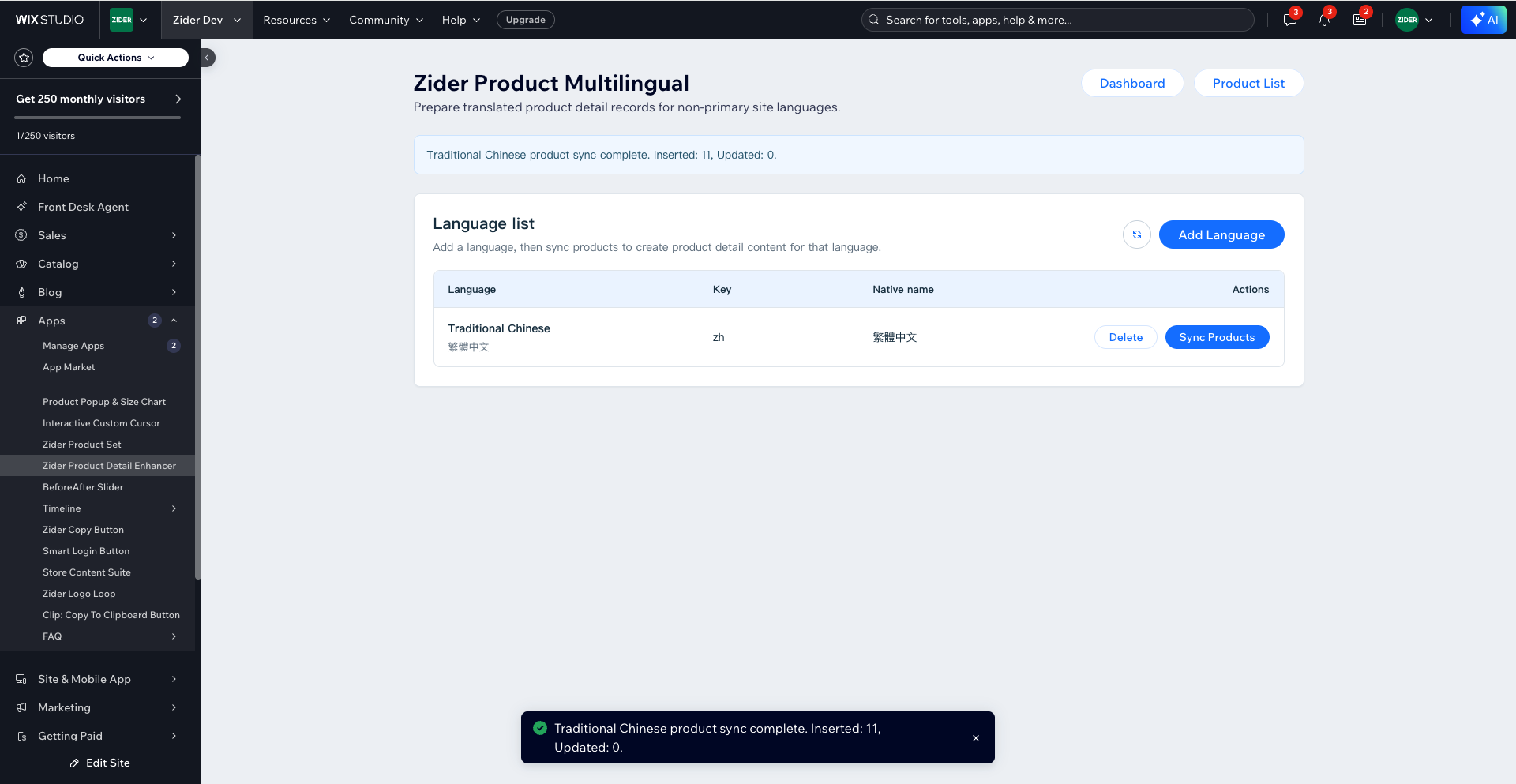
4. Edit Product Content
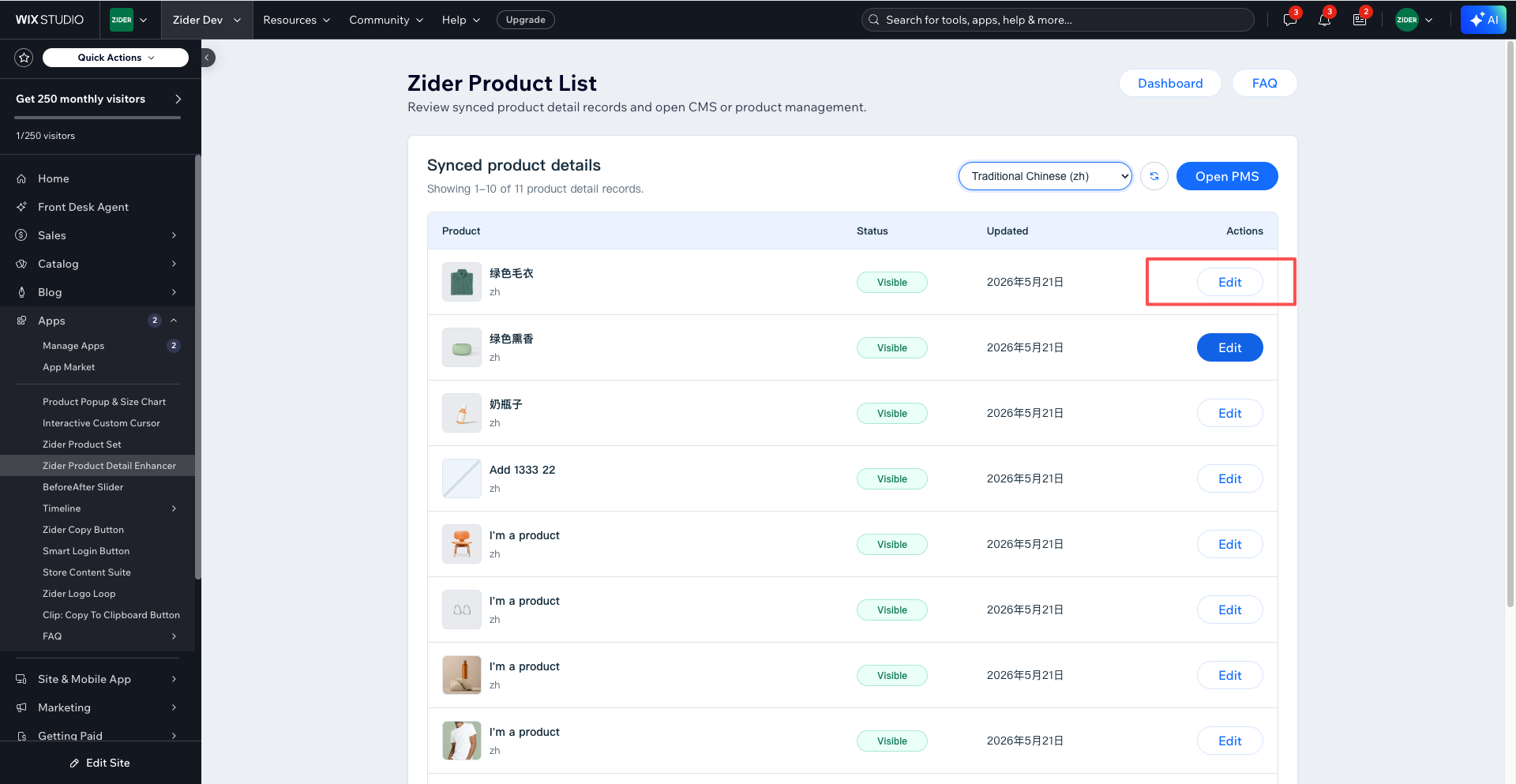
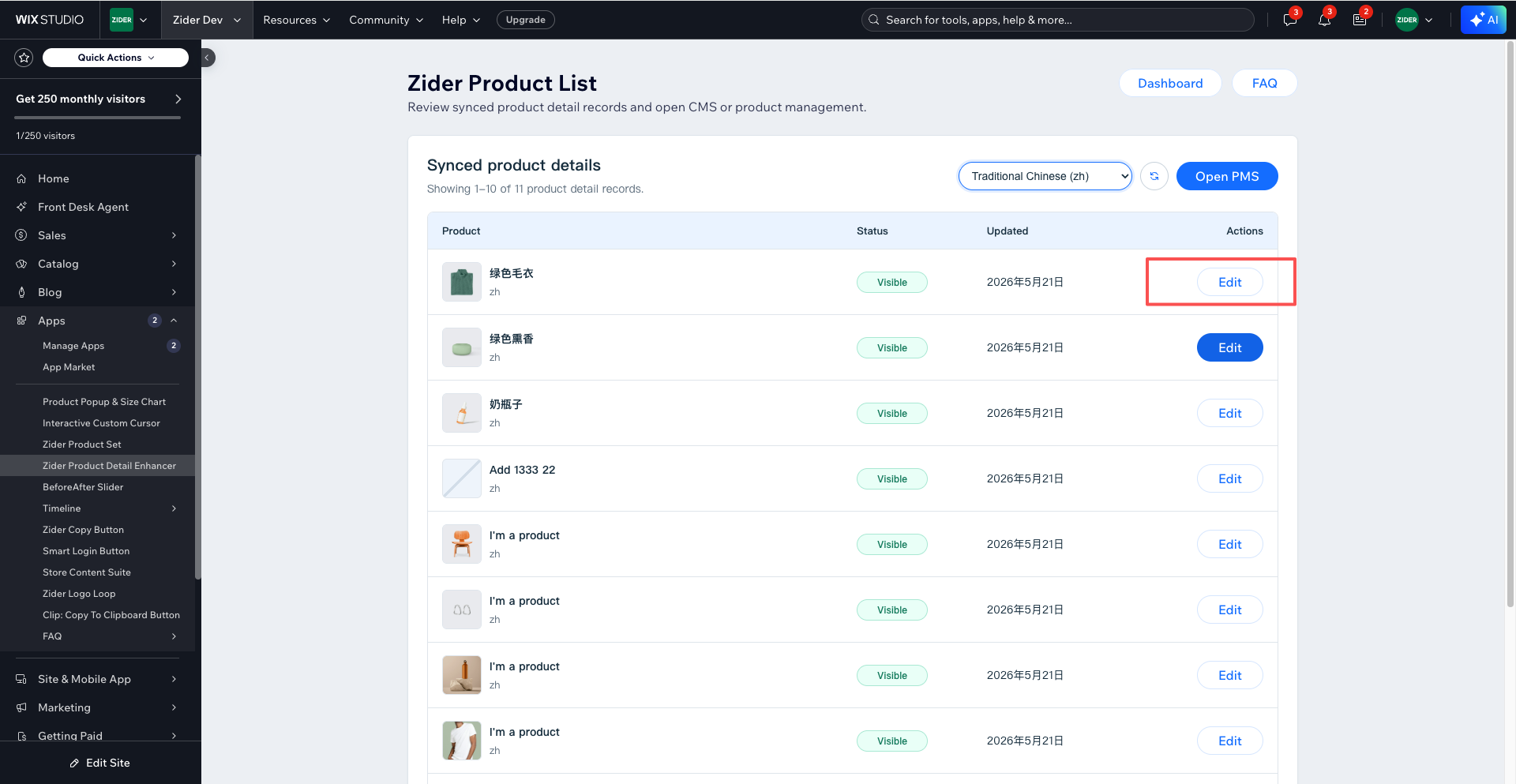
Click Product List at the top of the page.
Use the language dropdown to select the target language, such as Traditional Chinese (zh). The list will show the product detail records for that language.
Click Edit next to a product to open its CMS item and edit the translated product detail content.
5. Enable Multilingual in the Component Settings
Open your product detail page in the Wix Editor.
Select the Zider Product Detail Enhancer component and open the Zider Setting panel.
Find the Multilingual switch and turn it on. Once enabled, the component will load the product detail content that matches the current site language.
Click Save, then Publish your site.
Notes
- Main language content is stored in the default product detail content records.
- For each new language, add the language first, then sync products.
- After syncing, edit the translated product detail content from Product List.
- The Multilingual switch must be enabled in the component settings for the storefront to display language-specific content.